
How to Open & Unpack Chrome CRX Files Without Installing
Understand the CRX3 binary header format, why standard ZIP tools warn on CRX archives, and how to inspect packaged Chrome extension files before installing.
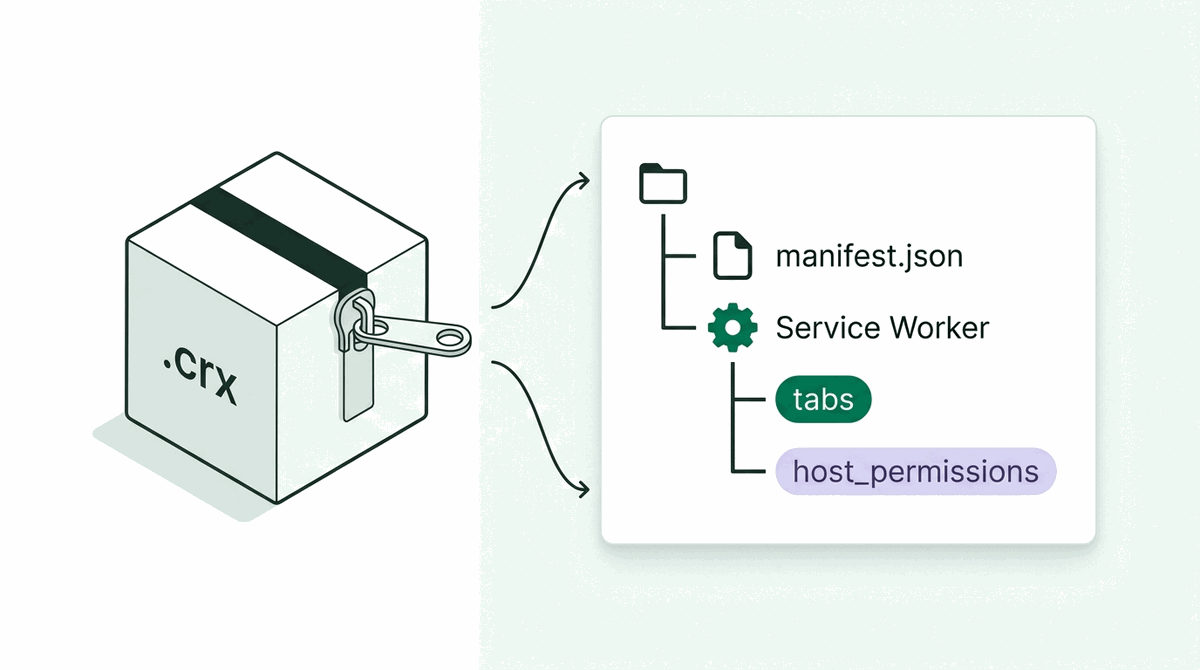
A Chrome .crx package is a signed ZIP archive prefixed with a binary CRX3 header (magic bytes Cr24, format version 3, header length, and protobuf signature data). Because this header precedes the ZIP payload, standard unzippers may warn or fail; use a static viewer like Extension X-Ray or CRX3-aware extraction to inspect manifest.json and scripts without installing.
1. Inside the CRX3 Format: Why Standard ZIP Tools Reject .crx Files
When you rename a .crx extension archive to .zip, strict unzippers such as Windows File Explorer or macOS Archive Utility frequently reject the file as corrupted because a Chrome package does not start at byte zero with ZIP PK magic bytes.
Every CRX3 file begins with a four-byte Cr24 identifier, followed by the format version (integer 3), the byte length of the protobuf header, and cryptographic publisher signatures before the actual ZIP archive payload starts.
Never Execute Untrusted Extension Packages
Inspecting or unpacking a CRX archive reads static files on disk without registering permissions in Chrome. Loading an unverified unpacked folder in chrome://extensions executes its scripts inside your browser session.
2. Key Files to Check After Unpacking Any CRX or ZIP Package
Once the ZIP offset is sliced past the CRX3 header or opened in a CRX-aware inspector, start with the declarative configuration before diving into bundled scripts.
- Open manifest.json first to inspect manifest_version (2 vs 3), requested permissions, optional_permissions, and host_permissions patterns.
- Locate the background service_worker path (in Manifest V3) and examine event listeners, alarms, and external fetch calls.
- Check content_scripts match patterns to confirm which websites the extension injects code into.
- Review bundled third-party libraries and declared web_accessible_resources to verify why files are exposed to web pages.
3. Static Inspection Options: Browser Viewer vs ZIP Utilities
Compare dedicated browser-based static inspection against general-purpose archivers and live profile installation.
| Inspection Task | Extension X-Ray | Standard ZIP / 7-Zip CLI | Installing in Test Profile |
|---|---|---|---|
| CRX3 Header & Signature Offset | Handled automatically for static browsing | 7-Zip often skips prefix; built-in OS tools fail | Executes package upon installation |
| Manifest & Permission Review | Structured manifest and permission view | Requires opening raw JSON in separate editor | Minimal user-facing install summary only |
| Static Risk & Endpoint Triage | Inspects packaged source and declared URLs | Manual recursive text search in terminal | Runtime execution required for logs |
| Zero-Install Code Safety | Does not install target extension into Chrome | Safe read-only disk extraction | Runs scripts inside browser profile |
4. Inspecting Packages with Extension X-Ray: Scope and Boundaries
Extension X-Ray lets developers and reviewers inspect available Chrome Web Store packages or import authorized .crx and .zip files directly inside a static viewer.
Remember that static source inspection reviews packaged files and manifest declarations only: it does not observe live runtime requests or guarantee safety. Optional cloud AI workflows are separate and can transmit selected source code when triggered.
Product scope and further reading
Editorial methodology: Written and maintained by Elnavix Labs from inspected Chrome extension package behavior, media container specifications, and official platform documentation. Visual figures are AI-generated conceptual diagrams; always check the official product listing for current release scope.
Inspect Any CRX or ZIP Extension Statically
Browse extension package trees, read manifest.json permissions, and trace declared endpoints without installing the inspected extension.
View Extension X-Ray on Chrome Web Store →Official Chrome Web Store developer tool by Elnavix Labs. Static inspection does not certify safety.Frequently Asked Questions
Can I open a .crx file without installing the extension into Google Chrome?
Yes. Using a CRX-aware static viewer such as Extension X-Ray or skipping the CRX3 binary header with a compatible archive utility lets you read manifest.json, HTML, CSS, and JavaScript files without executing them.
Why does Windows say a renamed .crx.zip archive is invalid?
Chrome Web Store .crx packages store a Cr24 CRX3 binary header and signature protobuf ahead of the ZIP payload. Strict ZIP readers expect PK bytes at the start of the file and report an error when encountering the CRX header.
Can Extension X-Ray open local .crx or .zip files from my computer?
Yes. In addition to viewing available Chrome Web Store listings, Extension X-Ray supports importing authorized .crx or .zip extension archives for local static file, manifest, and permission inspection.
Does unpacking a .crx archive guarantee the extension cannot send data later?
No. Static unpacking shows packaged code, permissions, and declared URL strings at that specific version. Remote backend behavior, dynamic server responses, and future extension updates require ongoing or runtime review.