
Convert Bilibili M4S Streams & Fix HEVC/AV1 Playback
Learn why Bilibili splits video.m4s and audio.m4s DASH segments, why HEVC or AV1 files show a black screen, and how to save compatible MP4 videos in Chrome.
Bilibili delivers modern high-definition video and audio as separate .m4s DASH segments and frequently encodes video with HEVC (H.265) or AV1. When a saved file plays audio with a black screen, the player lacks HEVC or AV1 support; open the MP4 in MPV or VLC, or select an available H.264 (AVC) source track when saving permitted videos.
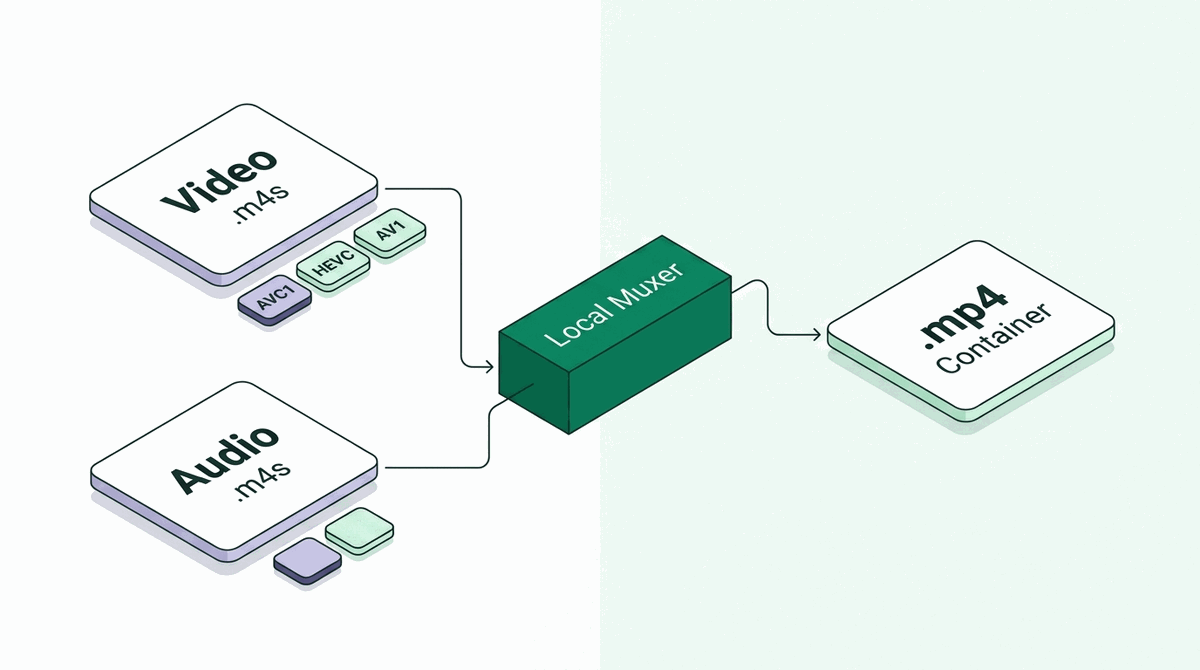
1. Why Bilibili Uses Split .m4s DASH Segments Instead of One MP4
Desktop browsers play Bilibili video through MPEG-DASH adaptive streaming. Instead of serving a single combined file, the player fetches separate video.m4s and audio.m4s initialization and media chunks in parallel.
Caching or saving raw .m4s files directly often leaves users with two unplayable fragments because each segment lacks the companion track and standard MOOV container indexing expected by desktop players.
2. Why Converted Files Show a Black Screen With Sound (HEVC & AV1)
Even after merging video and audio into an MP4 container, many Windows, macOS, and mobile video players only decode audio while showing a black screen if the video stream uses HEVC (H.265) or AV1 codecs.
Legacy QuickTime configurations, older browsers, and some non-linear video editors require extra codec extensions for HEVC or AV1, whereas AVC (H.264) plays natively on nearly every device.
Avoid Unnecessary Re-Encoding Quality Loss
Changing containers from compatible DASH streams into MP4 only wraps the video and audio frames without recompressing them. Only transcode to H.264 if your target editor or device cannot decode HEVC or AV1 natively.
- Check the codec inside your saved MP4 using VLC Media Information or ffprobe (look for h264/avc1 versus hevc/hvc1 or av01).
- For immediate offline playback of HEVC or AV1 tracks without re-encoding, open the MP4 in MPV or VLC.
- If you need universal compatibility on QuickTime, iOS, or video editors, select an available H.264 (AVC) source quality before saving or remux/transcode only when necessary.
- When merging separate local .m4s segments manually with FFmpeg, use stream copy (`ffmpeg -i video.m4s -i audio.m4s -c copy output.mp4`) if no header stripping is required.
3. Workflow Comparison: Browser Saving vs Manual M4S Remuxing
Compare client-side browser merging with manual command-line segment handling and default OS media players.
| Playback / Workflow Need | BiliFlow Extension | Manual FFmpeg Remux | Default OS Players |
|---|---|---|---|
| Split DASH Track Handling | Merges compatible tracks in Chrome | Requires separate video and audio inputs | Does not play raw .m4s cache segments |
| Codec Visibility Before Save | Shows available stream choices from source | Requires inspecting JSON/manifest first | Fails with audio-only black screen on AV1/HEVC |
| Audio-Video Sync Preservation | Produces standard MP4 container | Depends on matching timestamps and flags | No built-in stream merging |
| Setup Requirement | Chrome Web Store installation | FFmpeg CLI and segment extraction steps | Extra OS codec packs often required for HEVC |
4. Saving Compatible MP4 Videos Safely with BiliFlow
BiliFlow merges compatible permitted Bilibili DASH video and audio tracks in Chrome into standard MP4 files, and exports available native audio as M4A or converted MP3.
Available codecs, resolutions, and access depend on the original source video, your Bilibili account permissions, and your BiliFlow plan. While media merging runs in the browser, licensing, updates, and optional services use network requests.
Product scope and further reading
Editorial methodology: Written and maintained by Elnavix Labs from inspected Chrome extension package behavior, media container specifications, and official platform documentation. Visual figures are AI-generated conceptual diagrams; always check the official product listing for current release scope.
Save Complete Bilibili MP4 Videos in Chrome
Skip broken .m4s fragments. Merge permitted Bilibili video and audio tracks into standard MP4 files directly in Chrome.
View BiliFlow on Chrome Web Store →Official Chrome Web Store extension by Elnavix Labs. Source access and plan limits apply.Frequently Asked Questions
Why does a saved Bilibili .m4s file not open in Windows Media Player or QuickTime?
An .m4s file is an individual DASH media segment containing either video or audio alone, rather than a complete self-contained MP4 movie. It must be combined with its matching audio or video track into an MP4 container.
Why does my Bilibili MP4 play audio normally but show a black screen?
A black screen with working sound typically means the video stream is encoded in HEVC (H.265) or AV1 and your current player lacks the corresponding decoder. Testing the file in VLC or MPV, or choosing an available H.264 stream, resolves playback.
Can I convert Bilibili .m4s files to MP4 without losing video quality?
Yes. If you have valid decrypted initialization and media segments for a single MP4-compatible codec, remuxing wraps the existing encoded streams into an MP4 container without re-encoding pixels or degrading quality.
Does BiliFlow merge video and audio automatically when downloading permitted videos?
BiliFlow combines compatible permitted video and audio DASH streams in your browser into an MP4 file. Output format and resolution availability still depend on the source stream, your Bilibili account access, and your plan.