
Bilibili Audio Downloads: M4A, MP3 and Source Quality
Compare native M4A audio with MP3 conversion for permitted Bilibili downloads. Check source quality, format compatibility and the limits of lossy conversion.
For a permitted Bilibili video, choose an available audio track and supported M4A output or MP3 conversion. Native stream copying can avoid an additional encode; MP3 conversion is lossy. Source bitrate, access and tool support vary, so check the saved file rather than assuming studio-master quality.
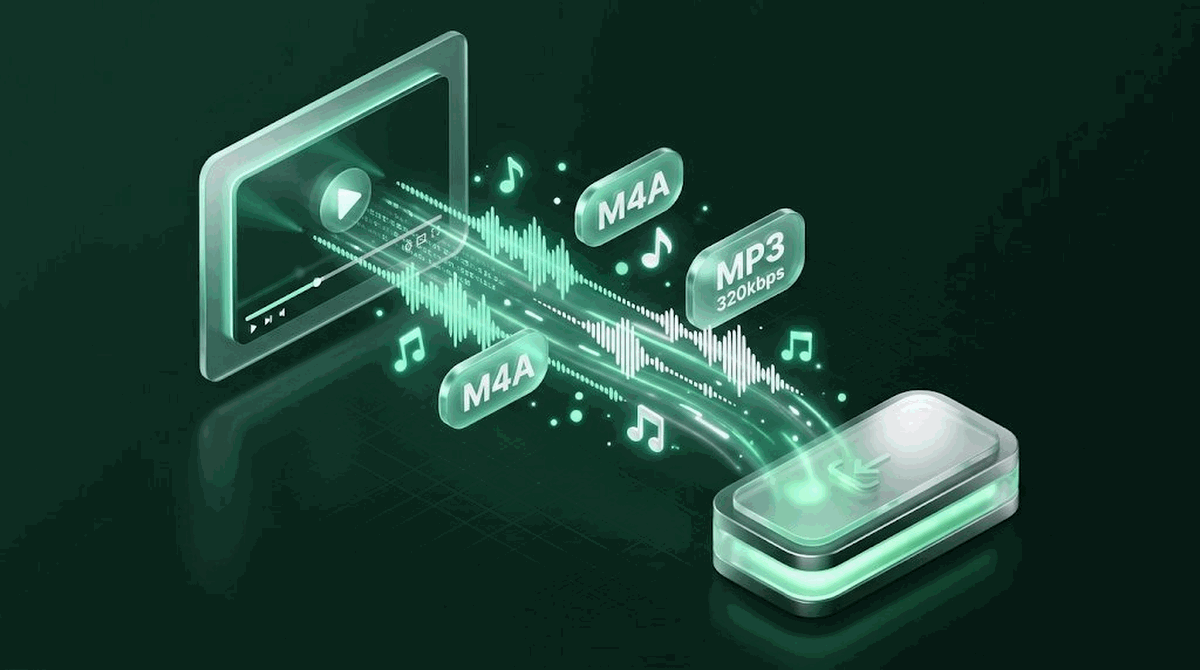
1. Why Bilibili Audio Requires Standalone Stream Extraction
Bilibili delivers media using modern DASH (Dynamic Adaptive Streaming over HTTP) infrastructure. Under this system, the video track and the audio track are stored as completely separate streams on Bilibili content delivery networks (CDNs). When you watch a video in your browser, the Bilibili web player fetches these two tracks concurrently and synchronizes playback in the browser media pipeline.
Saving audio alone can reduce transfer size compared with saving video and audio together. The amount depends on the source tracks and duration; no fixed saving or studio-master quality is established.
Native M4A vs Transcoded MP3
M4A is a container. Copying an available native audio stream can avoid an additional encode, but it cannot restore quality already lost in the source.
2. Understanding Bilibili Audio Bitrates: 64kbps to 320kbps
Audio fidelity on Bilibili depends on the creator upload settings and the visitor account authorization tier. Understanding these tiers ensures you always retrieve the highest bitrate available for your desired track:
Guest & Anonymous Viewers: Typically restricted to standard 64kbps or 96kbps AAC audio streams.
Standard Logged-in Users: Access medium-to-high fidelity streams ranging from 132kbps to 192kbps AAC.
Bilibili VIP & Hi-Res Content: Master quality audio ranging up to 320kbps AAC, with select music uploads offering Dolby Atmos or Hi-Res lossless playback options.
3. Step-by-Step: Extracting Audio with BiliFlow in 1-Click
BiliFlow integrates directly into your Chrome browser, detecting Bilibili native DASH audio endpoints in real time without passing your credentials to external third-party servers.
- Step 1: Open the desired Bilibili video, music video, or podcast episode in Google Chrome.
- Step 2: Click the BiliFlow extension icon in your Chrome toolbar to open the media inspector.
- Step 3: Switch to the Audio tab. BiliFlow displays the exact bitrate detected from the active CDN stream (e.g., 192kbps or 320kbps).
- Step 4: Choose supported M4A native-stream output or lossy MP3 conversion. Check compatibility and source quality.
- Step 5: Click Download. The audio track downloads directly to your default browser downloads folder within seconds.
4. Method Comparison: BiliFlow vs yt-dlp vs Online Converters
The following are workflow considerations, not a benchmark or verification of every provider.
| Topic | BiliFlow | yt-dlp (CLI) | Online converters |
|---|---|---|---|
| Acoustic Fidelity | Native audio copying or lossy MP3 conversion; source quality varies | Lossless (requires ffmpeg config) | Heavily compressed (often 128kbps) |
| Workflow Friction | 1-Click in browser toolbar | Terminal CLI commands & flags | Copy-paste URL + intrusive ads |
| Account Tier Handling | Uses active browser session | Requires manual cookie dump | Cannot access login-restricted audio |
| Local Privacy & Security | Direct local download from Bilibili CDN | Local machine execution | Route traffic through third-party servers |
5. Playing and Managing Your Extracted Audio Files
Playback compatibility depends on the codec, container and target player. Check the device requirements and test the saved M4A or MP3 file.
Because BiliFlow captures original video titles and clean metadata, your audio files download with descriptive names ready for personal music libraries and offline listening.
Product scope and further reading
Editorial methodology: Written and maintained by Elnavix Labs from inspected Chrome extension package behavior, media container specifications, and official platform documentation. Visual figures are AI-generated conceptual diagrams; always check the official product listing for current release scope.
Save Bilibili Audio with BiliFlow
Choose an available audio track and a supported M4A or MP3 output. Conversion, quality and access limits apply; check the result.
Add BiliFlow to Chrome (Free) →Official Chrome Web Store extension by Elnavix Labs. Supports Bilibili video, audio, and subtitle extraction.Frequently Asked Questions
Can I download audio from Bilibili without downloading the video file?
Transfer size depends on source bitrate, duration and selected format. Native audio copying can avoid another encode; it does not restore details already lost in the source.
What is the highest audio quality available on Bilibili?
Bilibili supports audio streams up to 320kbps AAC for high-bitrate uploads, and select certified music creators offer Hi-Res lossless or Dolby Atmos audio.
Why does BiliFlow provide M4A format by default?
Source bitrate and codec limit the saved result. MP3 conversion adds a lossy encode; it does not restore a studio master.
Do I need to log into Bilibili to download 320kbps audio?
Public videos allow standard audio downloads without an account, but access to 192kbps and 320kbps streams requires an active logged-in browser session on Bilibili.
Is it safe to use online web converters for Bilibili audio?
Compare a specific provider’s permissions and data practices before use. Reviewed BiliFlow source includes remote licensing and usage metrics; local media processing is not a complete-privacy guarantee.