
Download Bilibili Multi-Part Videos and Playlists
Understand Bilibili multi-part videos, episode lists and playlists. Check permissions, source availability and supported tool options before saving a series.
Bilibili multi-part videos (?p=1, ?p=2), UGC collections, and bangumi episode lists use different URL and playback structures. Save permitted episodes individually from the active Chrome watch page after checking source access and disk space. Automatic BiliFlow playlist discovery and batch queueing remain under local development review and are not established in the current Store release.
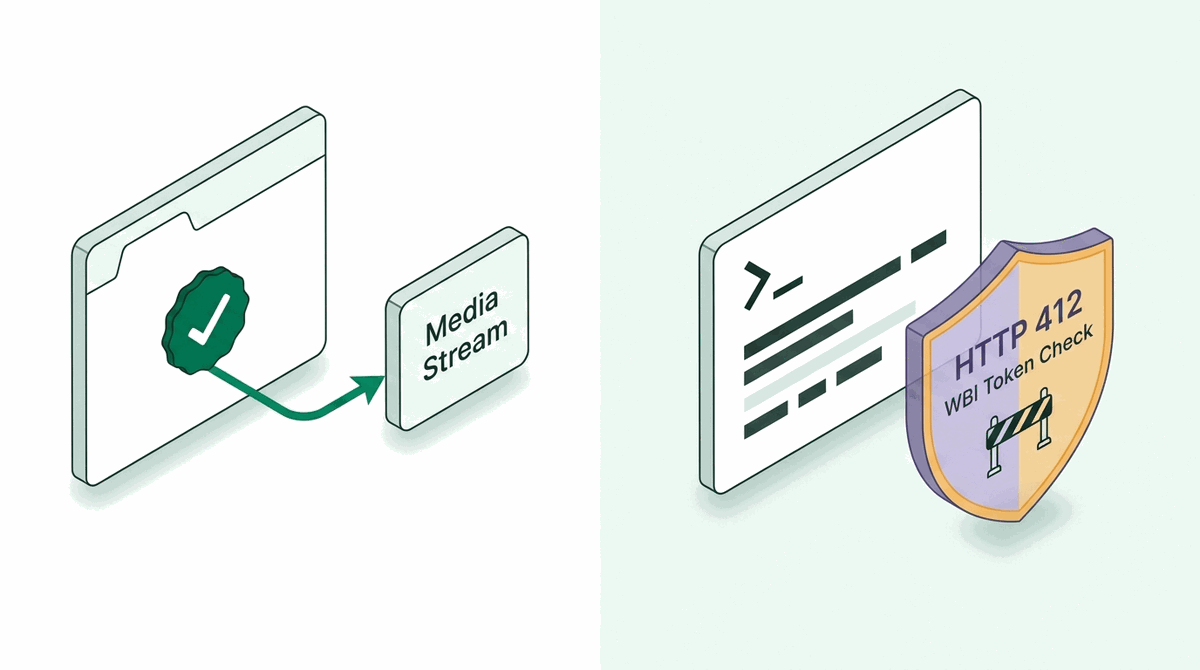
1. How Bilibili Multi-Page (?p=) Videos, Collections, and Seasons Work
A single Bilibili BV URL frequently hosts multiple distinct parts, such as university lectures, documentary chapters, or multipart gaming walkthroughs indexed with ?p=1, ?p=2, and ?p=3 query parameters. Separate from multi-page uploads, creators also group distinct BV entries into user-created collections (heji), while licensed anime and donghua episodes live under ep-prefixed bangumi season pages.
Each episode or part maps to its own internal CID media identifier and signed DASH video and audio CDN stream. Access to one episode does not guarantee identical codec availability, VIP access, or permission status across every subsequent part in the list.
Verify Published Extension Scope Before Planning a Batch Job
BiliFlow automatic playlist discovery, Select All batch queues, and background resumable series jobs remain under local development review rather than verified Chrome Web Store release capabilities. Check the current Store listing and installed UI controls before planning a multi-episode export.
2. Saving Individual Multi-Part Episodes Cleanly in Chrome
For permitted courses, lectures, or creator uploads, handling each active ?p= page inside Google Chrome avoids expired CDN tokens and broken split audio tracks:
- Step 1: Open the target part (?p=1, ?p=2, etc.) in Google Chrome and let the Bilibili player initialize the current CID stream under your signed-in session.
- Step 2: Confirm your account permissions, regional access, and available DASH resolutions or official closed captions for that specific part.
- Step 3: Open BiliFlow from the Chrome toolbar to inspect the detected video quality options, native audio tracks, and available SRT or VTT subtitles.
- Step 4: Export a short test part first and open the saved MP4 in VLC or MPV to verify audio-video synchronization, codec compatibility, and subtitle alignment before proceeding.
3. Workflow Comparison: Browser Page Saving vs CLI Batch Scripts
Compare active Chrome extension exports against command-line playlist scraping and manual cache recovery when archiving permitted multi-part series.
| Workflow Dimension | BiliFlow (Active Tab) | CLI Batch Scrapers | Third-Party Link Sites |
|---|---|---|---|
| Signed Session & Referer Context | Inherits loaded Chrome tab context for permitted parts | Requires exporting browser cookies manually | Runs on shared servers blocked by CDN rules |
| Multi-Page Batch Scope | Individual part saving; batch discovery under development review | Supports scripting with rate-limit sleep flags | Typically limited to single URL parsing |
| DASH Video & Audio Merging | Merges compatible tracks in browser to MP4 | Requires separate local FFmpeg binary setup | Often drops subtitles or serves lower bitrates |
| HTTP 412 / 567 Block Risk | Lower per-page friction on loaded player tab | Rapid sequential polling triggers 412/567 blocks | Frequently blocked or throttled on large lists |
4. Storage Planning, File Naming, and Local Subtitle Pairing
Before saving a long lecture series or multipart documentary, inspect the stream bitrate shown by the player or first exported episode to estimate required SSD space cleanly. Long 1080p or higher-tier episodes accumulate several gigabytes quickly across 10 to 30 parts.
Rename exported files consistently with padded sequence numbers (for example Series-P01.mp4 and Series-P01.en.srt) inside a single folder so desktop media players like MPV, VLC, and Jellyfin match external subtitle tracks automatically.
Product scope and further reading
Editorial methodology: Written and maintained by Elnavix Labs from inspected Chrome extension package behavior, media container specifications, and official platform documentation. Visual figures are AI-generated conceptual diagrams; always check the official product listing for current release scope.
Save Permitted Bilibili Episodes Cleanly in Chrome
Use BiliFlow to export individual permitted Bilibili video episodes with sound, native audio, and available SRT subtitles directly in Chrome. Multi-page playlist batch queueing remains under local development review.
Add BiliFlow to Chrome (Free) →Official Chrome Web Store extension by Elnavix Labs. Supports permitted video, audio, and subtitle export; batch queueing under development review.Frequently Asked Questions
Does BiliFlow currently download an entire Bilibili playlist automatically in one click?
No. Automatic playlist discovery, Select All batch queues, and resumable multi-episode batch jobs remain under local development review and are not established in the published Chrome Web Store release. Use BiliFlow to save permitted individual episodes from the active watch tab.
Why does Bilibili ?p=2 sometimes have different quality options or errors compared to ?p=1?
Each ?p= page points to a distinct internal CID media asset with its own CDN signature, codec tracks, and permission rules. Switching to the next part forces the web player to request a fresh CID stream.
Why do command-line batch playlist downloads often stop with HTTP 412 or HTTP 567?
Automated CLI loops fire rapid API requests across dozens of CIDs from one client fingerprint, triggering Bilibili anti-scraping WBI signature checks and CDN rate limits unless paced carefully with fresh cookies.
How should I organize downloaded multi-part Bilibili videos and SRT subtitles on desktop?
Store the video and matching closed-caption file in the same directory using identical filename prefixes such as Lecture_01.mp4 and Lecture_01.en.srt so VLC or MPV loads captions automatically.